- Published 8 Mar 2023
- Last Modified 5 Aug 2026
- 17 min
USB Cable Guide by StarTech.com: USB Cable Types, How to Choose, and More
If you’ve ever wondered what the differences are between USB types, versions, and charging capabilities, you’ve come to the right place.


USB technology has evolved rapidly over the past 25 years, and with multiple connector types, speeds, and power standards available today, choosing the right cable can be confusing.
That's why we’ve partnered with StarTech.com, a global leader in manufacturing top-quality USB cables and connectivity solutions, to create this USB cable guide to help you understand the various types of USB cables, what the USB versions mean for transferring your data, how to choose the right USB cable for your needs, and how they work.
What Is a USB Cable?
USB (Universal Serial Bus) is a global standard used to connect devices for data transfer and power delivery. A USB cable is the physical cable that enables communication between devices, allowing both data exchange and power transmission through different USB types of connectors and ports.
Originally introduced in the mid-1990s, USB was developed to simplify and standardise connections between computers and peripheral devices such as keyboards, printers, and external storage drives. By replacing multiple proprietary connectors with a universal interface, users can simply use a standard cable that works across a wide range of devices.
Today, USB is widely used across almost all electronic devices, including:
- Laptops and desktop computers
- Smartphones and tablets
- Gaming consoles
- Industrial controllers and embedded systems
USB cables generally serve two main purposes:
- Data transfer between devices
- Power delivery for charging devices and powering peripherals
Over time, USB standards have evolved significantly, introducing different USB types such as USB-A, USB-B, USB-C, and Micro-USB. Each type has its own connector design and capabilities, supporting different speeds, power levels, and device compatibility requirements.
Understanding what the different types of USB cables are is important when selecting the right cable for a specific application. For example, some USB cables are designed for fast charging, while others prioritise high-speed data transfer or video output functionality.
In collaboration with connectivity experts such as StarTech.com, USB solutions continue to evolve to meet modern performance demands, offering a wide range of reliable USB cable options for both consumer and professional environments.
How Do USB Cables Work?
USB cables transmit data and power simultaneously through dedicated internal conductors. The internal structure varies depending on the USB version, with each generation adding conductors and shielding to support higher speeds and greater power delivery.
Different USB types determine how data and power are handled within a cable, as well as the level of performance it can support.
USB 2.0
A standard USB 2.0 cable typically contains:
- VBUS: Carries 5V power to the connected device
- GND: Ground return line
- D+ and D–: A twisted differential pair for data communication
- Outer shielding to reduce electromagnetic interference (EMI)
The colour coding commonly seen in basic USB 2.0 cables (red for power, black for ground, white and green for data) reflects this four-conductor layout.
USB 3.x
USB 3.x cables retain the USB 2.0 conductor layout for backwards compatibility and add:
- Extra conductor pairs to support faster SuperSpeed data channels
- Additional shielding layers to maintain signal quality at higher frequencies
- A conductor arrangement that supports simultaneous send and receive (full-duplex) communication
These enhancements allow this type of USB cable to support much faster data transfer rates compared to earlier versions.
USB-C
USB-C connectors incorporate up to 24 pins in a reversible configuration, including:
- Dedicated pins for power delivery negotiation and device configuration
- Support for alternate modes such as DisplayPort and Thunderbolt on compatible devices
- Sufficient pin count to handle high-speed data, video output, and high-wattage charging simultaneously
Note: Modern USB 3.x and USB-C cables rely on impedance-controlled, shielded conductor geometry rather than simple colour-coded wires. The colour coding familiar from USB 2.0 cables does not carry over to higher-specification designs, where internal geometry and shielding are engineered specifically to maintain signal integrity at high data rates.
How to Identify a USB Cable
Identifying a USB cable correctly ensures compatibility with your devices and prevents connection errors or performance issues. Several visual and physical characteristics help distinguish between USB cable types:
- Connector Shape:
- USB Type-A: Rectangular, host-side connector used in computers and chargers
- USB Type-B: Square or near-square connector used in printers and industrial equipment
- USB-C: Compact, reversible connector supporting modern USB standards
- Micro-USB: Small trapezoidal connector used in legacy mobile devices and embedded systems
- Mini-USB: Older compact connector used in early digital equipment
Each USB connector type has a distinct mechanical form factor. Physical form is often the most reliable initial identifier.
- Port and Connector Markings: Many USB ports and connectors carry printed symbols or text indicating the USB version. Look for "SS" (SuperSpeed) markings for USB 3.0 and above, USB trident logos indicating USB compliance, or a Thunderbolt symbol on USB-C ports that support Thunderbolt 3 or 4.
- Colour Codes: USB ports and connectors are sometimes colour coded to suggest version and performance level. White or black typically indicates USB 2.0, blue denotes USB 3.0 or USB 3.2. Gen 1, and teal, red, or yellow often indicate higher-speed or charging-focused implementations depending on the manufacturer. However, since this system is not formally standardised by USB-IF, colour should only be used as a general reference and not a definitive way to determine a USB cable type.
- Cable Markings: Many certified USB cables include printed specifications along the cable jacket such as USB version (e.g. USB 3.2 Gen 2), power delivery ratings (e.g. 60W, 100W, 240W), and certification indicators such as USB-IF compliance, USB Power Delivery (USB PD), or MFi certification for Apple devices, making these markings one of the most reliable ways to confirm the exact performance type of a USB cable when physical appearance alone is not sufficient.
USB Power Delivery (PD) and Fast Charging
USB Power Delivery (PD) is a charging protocol enabling power transfer up to 240W (USB PD 3.1) over USB-C connections, supporting devices from smartphones to high-performance laptops. Understanding USB PD helps when choosing a USB cable capable of delivering the power your devices require.
USB PD defines several power tiers: 15W for smartphones, 27W for fast mobile charging, 45W for ultrabooks, 60W for standard laptops, 100W for high-performance laptops (USB PD 3.0), and up to 240W for gaming systems (USB PD 3.1). The cable's power rating must match or exceed the charging requirement; a 60W cable cannot safely deliver 100W even if the charger supports it.
Proprietary fast-charging protocols also exist:
- Qualcomm Quick Charge: Android devices, up to 100W
- Samsung Adaptive Fast Charging (AFC)
- Huawei SuperCharge and OnePlus Warp Charge
When choosing a good USB cable for fast charging, verify USB PD support, check the power rating meets the device's maximum charging rate, and confirm USB-IF certification for safe power delivery.
Cable Length and Signal Degradation
USB cables experience signal degradation over distance, affecting data transfer reliability and power delivery. USB specifications define maximum passive cable lengths: USB 2.0 supports up to 5 metres, USB 3.0 up to 3 metres, USB 3.1 Gen 2 recommends 1-2 metres, and USB4/Thunderbolt supports 0.8 metres at full speed. Exceeding these lengths causes packet loss and connection drops.
Passive cables contain only copper conductors. Active cables integrate signal amplification, extending USB 3.0 to 10-15 metres and USB 2.0 to 20-25 metres. Optical USB cables convert signals to light, enabling runs of 50 metres or more for industrial machinery control and digital signage installations.
To extend USB connections safely:
- USB active extension cables: up to 20-30 metres
- USB repeater hubs: regenerate signals at intervals
- USB over Ethernet extenders: exceed 100 metres using Cat5e/Cat6 cabling
Passive extension cables should not exceed the maximum specified lengths, as they degrade performance.
USB Cable Certification
USB-IF (USB Implementers Forum) certification verifies that cables meet technical, safety, and interoperability standards. Certified cables carry a unique TID (Test ID) and are listed in the USB-IF database, ensuring reliable performance and reducing risks from substandard products.
Uncertified cables may deliver inconsistent power, fail to support advertised speeds, lack proper EMI shielding, use materials that degrade quickly, or damage devices through incorrect pinouts. For USB-C cables supporting USB PD, uncertified products have caused device damage due to faulty resistor values.
Verify certification by checking for the USB-IF logo and TID on the cable or packaging, searching the TID in the USB-IF database at usb.org, or purchasing from reputable suppliers such as RS Malaysia who stock certified products.
Apple's MFi (Made for iPhone/iPad/iPod) programme certifies third-party Lightning cables. MFi-certified cables contain an authentication chip ensuring compatibility; non-MFi cables may trigger warnings, charge intermittently, or stop working after iOS updates.
USB Versions Explained
USB versions define the data transfer capability, protocol efficiency, and encoding methods of a connection, rather than the physical connector type, meaning that different USB types (such as USB-A, USB-C, and others) can support multiple USB versions depending on the internal specification of the cable and device hardware.
Over time, USB has evolved significantly to meet increasing demands for faster data transfer and improved power delivery across consumer, commercial, and industrial applications.
The table below helps decipher the speed and capabilities of each version, providing a reference for understanding how USB has evolved to meet increasing data transfer and power delivery demands across consumer, commercial, and industrial applications.
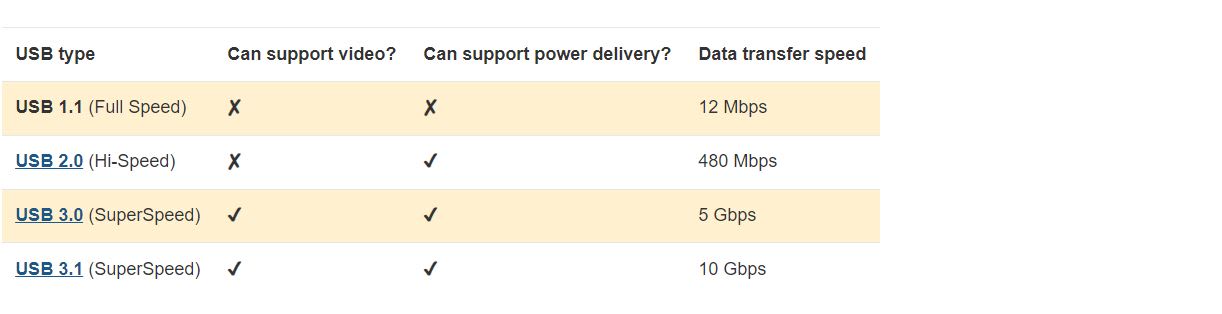
USB Evolution Overview
- USB 1.1: Supports data transfer speeds of up to 12 Mbps and was widely used for early low-speed peripherals such as keyboards, mice, and basic input devices.
- USB 2.0 (High Speed): Offers speeds of up to 480 Mbps and became the first mass-adopted standard for a wide range of devices including external storage, printers, and consumer electronics, significantly improving usability and compatibility across USB cables and devices.
- USB 3.2 Gen 1 (formerly USB 3.0, then USB 3.1 Gen 1): Delivers speeds of up to 5 Gbps with additional data lanes, making it suitable for faster external drives and modern peripherals while maintaining backwards compatibility with earlier USB versions.
- USB 3.2 Gen 2: Supports speeds of up to 10 Gbps and improves data efficiency and throughput, enabling faster file transfers and better performance for high-bandwidth devices, particularly when used with modern USB-C cables.
- USB 3.2 Gen 2x2: Provides speeds of up to 20 Gbps using a dual-lane architecture, doubling the throughput of single-lane USB 3.2 Gen 2. Achieving full speed requires compatible devices and USB-C cables rated for this specification.
- USB4: Comes in two performance tiers: up to 20 Gbps (Gen 2x2) and up to 40 Gbps (Gen 3x2). USB4 is based on Thunderbolt 3 architecture and integrates data and display protocols into a single connection standard, though performance depends on the specific devices and cables used.
USB Types Explained
As with USB versions, the shape of the USB connection has also seen drastic changes over the years. With each new evolution of USB type, their form factor generally becomes smaller to accommodate for new, much thinner devices that are popular during the time of release.
The USB-C design, the latest USB release, is unique because it's the only USB that fits into another port type not specifically created for it: Thunderbolt 3. They are both the same shape and users can employ Thunderbolt 3 and USB-C cables and ports interchangeably. All other male and female USB connector types only fit their corresponding male and female ports. For example, a USB port type B will only accept a USB type B connector.
The version or speed of the technology is dictated by the host device, connecting peripheral, and the version of the USB cable, not the shape of the port. Understanding this guide to USB connector types helps avoid compatibility issues when selecting cables for specific devices and applications.
What Does Backwards Compatible Mean?
Backwards compatibility means that the latest version of something is still capable of using previous versions. For example, a USB A 3.0 port is capable of recognising and utilising a USB A 2.0 peripheral.
For the newer USB-C, it's still possible to connect older USB supported devices to a USB-C port or host, via an adapter. A wide range of USB cables can be used if the host and peripheral have different port types. Adapters, or connectors, can be found for all USB types and are not limited to USB-C.
When using previous USB versions, the performance is limited to the earliest version that's being used. For example, if you want to transfer files from a 2.0 USB A enabled hard drive to a laptop with USB A 3.0 ports, the transfer rate (USB speeds) would be limited to 480Mbps. Understanding backwards compatibility is essential when choosing USB cables for mixed-generation device environments common in Malaysia's offices and industrial facilities.
StarTech USB-C Multiport Adapter with HDMI
Discover more about this multiport adapter from StarTech.com in our handy video. From its compact size to the variety of ports available, explore how it could benefit your setup.
Video details
Transcript
Transcript
No sound available.
Types of USB Cables and Their Uses
USB cables serve applications from charging mobile devices to high-speed data transfer in industrial automation. Understanding which USB cable type suits a given application ensures reliable performance and compatibility.
Below is a short explanation of the most popular USB types available on the market:

USB Type A
USB Type-A is the most widely used legacy connector and remains common on host devices due to its long-standing adoption and backward compatibility across multiple USB versions.
USB Type-A connectors are typically used for connecting peripherals to host devices and are designed as a flat, rectangular connector that can only be inserted in one orientation.
Commonly found on:
- Charging adapters and USB hubs
- Computers and laptops
- Gaming consoles
- Flash drives and external storage drives
- Computer mice, keyboards, and controllers
- Docking stations and multiport adapters
Despite being an older USB type, USB-A continues to be widely supported across modern systems.

USB Type B
USB Type-B connectors are primarily used in larger peripherals that require stable, durable connections, especially in professional and industrial environments.
These connectors are typically square or near-square in shape and are designed to reduce accidental disconnections in fixed installations.
Commonly found on:
- Printers and scanners
- Industrial automation controllers
- Laboratory and measurement equipment
- External storage enclosures
- Industrial control interfaces and programmable logic controllers
USB Type-B remains important in specialised applications, even as newer USB types become more common.
USB Type C
USB Type-C is the modern universal connector designed for high performance, versatility, and compact device design. It is now widely adopted across smartphones, laptops, and professional equipment. Key technical features:
- Reversible connector design for ease of use
- High-speed data lanes supporting USB 3.2 and USB4
- Power delivery up to 240W (USB Power Delivery 3.1 EPR)
- Support for alternate modes such as DisplayPort and PCIe tunnelling (device-dependent)
However, it is important to note that USB-C is a connector standard, not a performance guarantee. A USB-C cable may support different capabilities depending on certification and internal wiring, including:
- USB 2.0 speeds only (basic data and charging)
- USB 3.x speeds (higher data transfer performance)
- USB4 or Thunderbolt speeds (only with certified hardware and controllers)

USB-C connectors are physically identical to Thunderbolt 3 and 4 ports, allowing interchangeable use for data transfer, power output, and video. Users can charge electronics with up to 100W via USB PD, and Thunderbolt ports deliver data speeds up to 40Gbps.
Commonly found on:
- Smartphones and tablets
- Laptops and docking stations
- Charge hubs and multiport adapters
- Industrial computing systems
- Medical diagnostic equipment and patient monitors
- High-performance peripherals
USB-C and Thunderbolt 3
Changing the way we think about connectivity and performance. Discover why so many people are beginning the transition to USB-C and Thunderbolt 3 in this short video from StarTech.
Video details
Transcript
Transcript
NA

Mini USB
Mini USB is an older compact connector introduced in the early 2000s and is now largely found in legacy equipment. It was commonly used before the widespread adoption of Micro-USB and USB-C. Mini USB typically supports USB 2.0 speeds.
Commonly found on:
- Digital cameras
- Older portable devices
- Legacy industrial handheld terminals
- Early MP3 players and accessories

Micro USB
Micro USB became the dominant mobile connector before USB-C adoption and is still found in many legacy and low-cost devices. It offers a smaller form factor compared to Mini USB and was widely used in mobile electronics for charging and data transfer. Micro USB supports USB 2.0, with limited implementations of USB 3.0 in some variants. Commonly found on:
- Android smartphones (older models)
- Digital cameras
- GPS devices
- eReaders
- Industrial sensors and IoT devices
- Embedded systems

Lightning Connector (Apple)
Apple's Lightning connector is exclusive to modern Apple devices and can be used to connect keyboards, headphones, and chargers to iPhones, iPads, and desktop Mac computers. Completely reversible for connectivity convenience, the lightning connector cable is essential for Apple devices and accessories. There are also adapters available to convert lightning connectors to more conventional USB ports.
Industry Transition: Lightning to USB-C
Apple transitioned from Lightning to USB type-C starting with the iPhone 15 series in 2023, driven by EU regulations requiring a common charging standard. All new iPhone and most iPad models now feature USB-C ports instead of Lightning.
The shift aligns Apple devices with the universal standard used by Android smartphones, laptops, and tablets, simplifying charging and data transfer. Existing Lightning cables remain functional with older Apple devices.
Choosing a USB Cable or Connector
Now that we've covered the most popular types of USB connectors, you may still be wondering which one do you have or need?
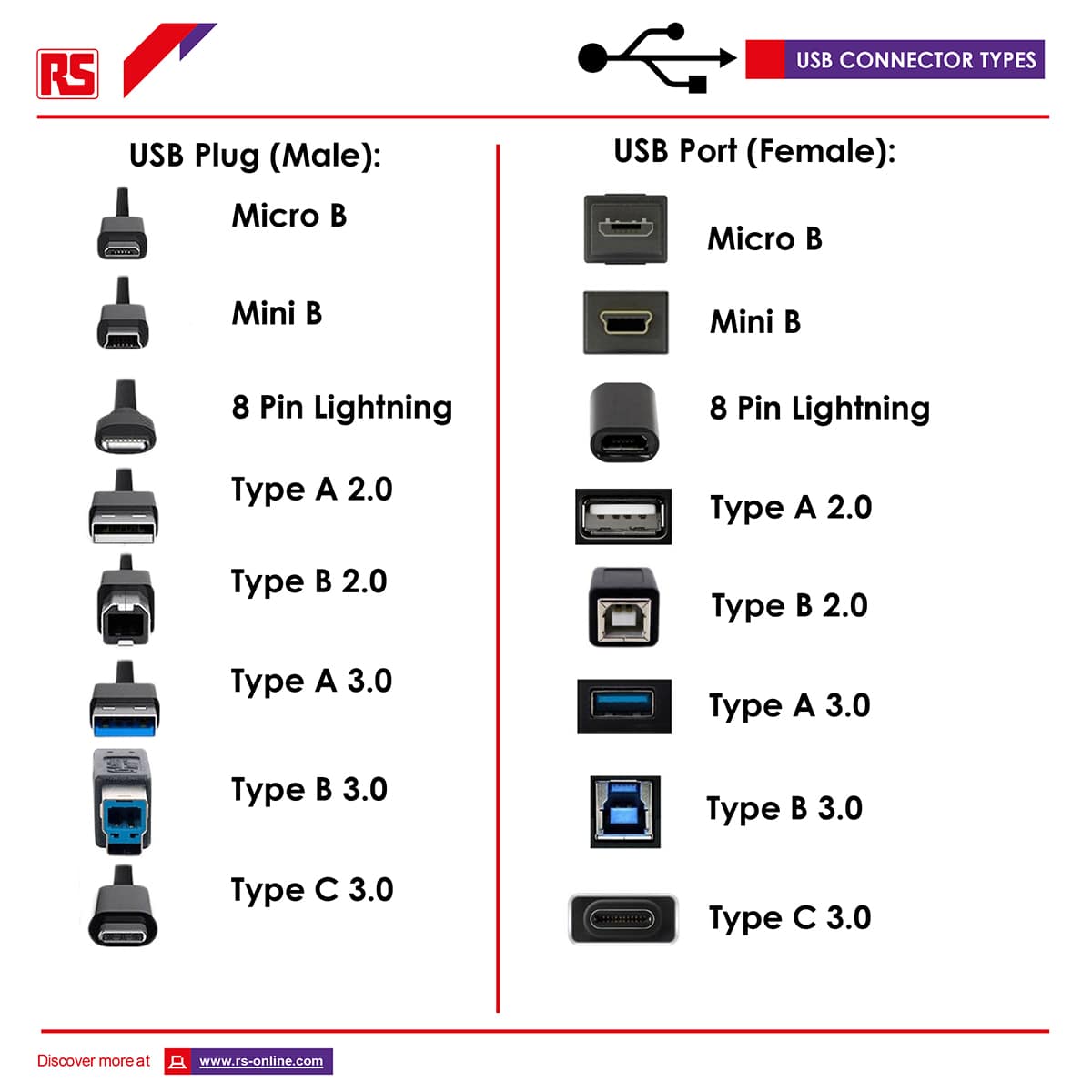
Every USB connector type is available as a 'female' or 'male' which shows the way they are compatible. A male part will plug into a female counterpart.
The guide to USB connectors below includes a chart showing what each USB cable connection looks like, helping you identify what male plug or female receptacle you require. When choosing the right USB cable for your application in Malaysia's offices, factories, or data centres, consider the following:
Things to think about:
- Do I need a male plug or a female receptacle?
- What input and output USB types do I need?
- Do both the connectors need to be the same?
- What colour and USB cable length do I need?
- What version do I require?
- Does the cable need to support power delivery for charging laptops or high-power devices?
- Will the cable be used in an industrial environment where durability and shielding matter?
- Do I need certification (USB-IF or MFi) for safety and compatibility assurance?
To simplify, selecting the right USB cable requires evaluating both electrical specifications and application-specific requirements to ensure compatibility, performance, reliability, and safe power delivery. Some key factors to consider include:
- Connector Compatibility: Ensure the cable matches the required interface on both the host device and peripheral, including USB-A, USB-B, USB-C, Micro-USB, Mini-USB, or Lightning connectors, as different USB connector types are not physically interchangeable without adapters or compatible ports.
- USB Version Requirement: Choose a USB cable that supports the required data transfer standard for the intended application, with USB 2.0 typically suitable for basic peripherals and charging, USB 3.x recommended for external storage and high-speed data transfer, and USB4 designed for high-performance computing, advanced docking stations, and bandwidth-intensive applications.
- Power Requirements: Evaluate the charging and power delivery needs of the connected device, including supported wattage, USB Power Delivery (USB PD) compatibility, and cable current rating requirements such as standard 3A cables or 5A e-marked cables used for higher-power applications like laptops and professional equipment.
- Environmental Conditions: For industrial, commercial, or harsh operating environments, consider USB cables with additional durability and protection features such as shielding, reinforced strain relief, EMI-resistant construction, and ruggedised materials to improve long-term reliability and signal integrity.
- Certification and Compliance: Where possible, use certified cables such as USB-IF certified USB cables or MFi-certified Lightning cables within the Apple ecosystem, as certification helps verify compliance with performance, safety, and compatibility standards.
Industrial Applications of USB
USB cables support automation, control systems, and embedded computing across Malaysia's industrial sectors. Industrial USB cables feature enhanced shielding and rugged connectors to withstand harsh environments.
- Industrial Automation: USB Type-A and USB-C cables connect human-machine interfaces (HMIs), programmable logic controllers (PLCs), and industrial PCs. Rugged USB cables with reinforced jackets and EMI shielding suit factory floor environments.
- Manufacturing & Factory Automation: USB connections link barcode scanners, RFID readers, and quality control cameras to control systems. USB 3.0 and higher support the data rates required for machine vision and real-time monitoring applications.
- Healthcare/Medical Devices: USB cables connect diagnostic equipment, patient monitors, ultrasound machines, and medical imaging systems. Medical-grade USB cables meet IEC 60601-1 standards for patient safety and electrical isolation.
- Aerospace & Defense: Mil-spec USB cables with ruggedised connectors and shielding resist vibration, temperature extremes, and electromagnetic interference in avionics, ground support equipment, and defence electronics.
- Transportation/Rail: USB connections support onboard diagnostics, passenger information displays, and communication systems in rail vehicles. Industrial-grade USB cables withstand mechanical stress and temperature variation in rolling stock environments.
- Oil & Gas: Hazardous-area USB cables with intrinsically safe ratings connect sensors, data loggers, and control systems in explosive atmospheres on offshore platforms and refineries.
- Power/Energy Utilities: USB cables link SCADA systems, remote terminal units (RTUs), and substation equipment for monitoring and control. Outdoor-rated USB cables resist UV exposure and moisture ingress in utility infrastructure.
- Telecommunications/Networking: USB-C and USB 3.0 cables connect routers, switches, base stations, and network test equipment. High-speed USB cables support firmware updates and diagnostic access in telecom installations.
- Digital Signage: USB connections power media players, touchscreen displays, and interactive kiosks in retail and public spaces. Long USB cable runs or optical USB extenders distribute content across large installations.
- Embedded Computing Systems: USB cables connect single-board computers, industrial embedded systems, and edge computing devices. USB OTG and USB-C support flexible connectivity in space-constrained embedded applications.
FAQs
Popular USB Products


